Uninstalling the Windows Agent
Windows Agent
Remote uninstall - agents version 10.0.xxxxx
Administrators only
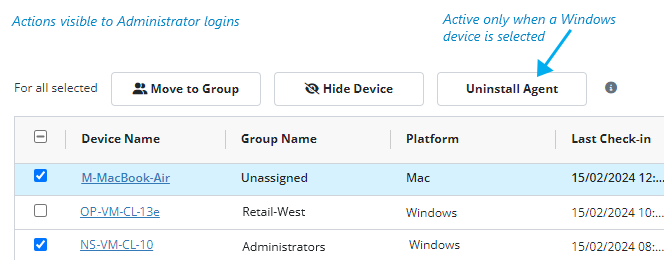
- Go to Admin | Endpoint Agents in the app console.
Select one or more devices where a Windows Agent is installed. - Press Uninstall at the top of the device list.
- The command is sent to the remote device.
If the agent is active and communicating, it receives the command and uninstalls as soon as possible. If the agent is not communicating, it may receive the command and proceed with the uninstall when it checks in. If the agent continues to appear as installed in Endpoint Agents, you may need to try the command again. - The agent is uninstalled.
The uninstall procedure removes the agent software and restarts the endpoint device. - Data for the user and device remain in your database.
Data is accessible until the end of your Data Viewing Period.
Manual uninstall - agents version 10.0.xxxxx
- Contact Support and request the standalone Windows uninstaller.
Veriato Support will provide you with the Windows Agent Uninstaller, Uninstall*.exe, and a unique token passphrase, UninstallKey.txt. - Download the uninstaller.
Go to the link provided by Support and download the Uninstaller and Uninstall Key. You won’t be able to use the uninstaller without the key token. - Copy the Uninstaller and token phrase to the endpoint device.
Make sure both are in the same directory. - Double-click the uninstaller .exe file.
The uninstaller finds the passphrase and uninstalls the agent. When the procedure is finished, the device restarts. You can use the uninstaller and token key at as many devices on the domain or network as you wish. The token key expires after a period and you will need to request another. - Data for the user and device remain in your database.
Data is accessible until the end of your Data Viewing Period.
NOTE: See Legacy Agent Information if you need to uninstall an 8.2.x agent.